Your inspection report in your firm's house style
With a paid plan, the report gets your firm's logo, colours and fonts. You choose from 20 designs; on the free plan, the report is always Klassiek (“classic”).
Design
Zijbalk
Lora · Inter
How to put the report in your house style
Open Huisstijl
Go to Instellingen, Huisstijl (“settings, house style”). The main admin and the managers can change the house style there, with a paid plan.
Choose a logo, colours and fonts
Add your logo and choose four colours and two fonts. Do you get a contrast warning? Adjust the colour until the text reads well.
Choose a design
View each design with the sample inspection in your own house style, as a phone or as a computer. Choose one and save your house style.
Deliver
Deliver a paid inspection. The report then gets your house style and your design, online too.
Ten designs, each in a different house style
There are 20 designs. Here you see ten of them, each with different colours and fonts.
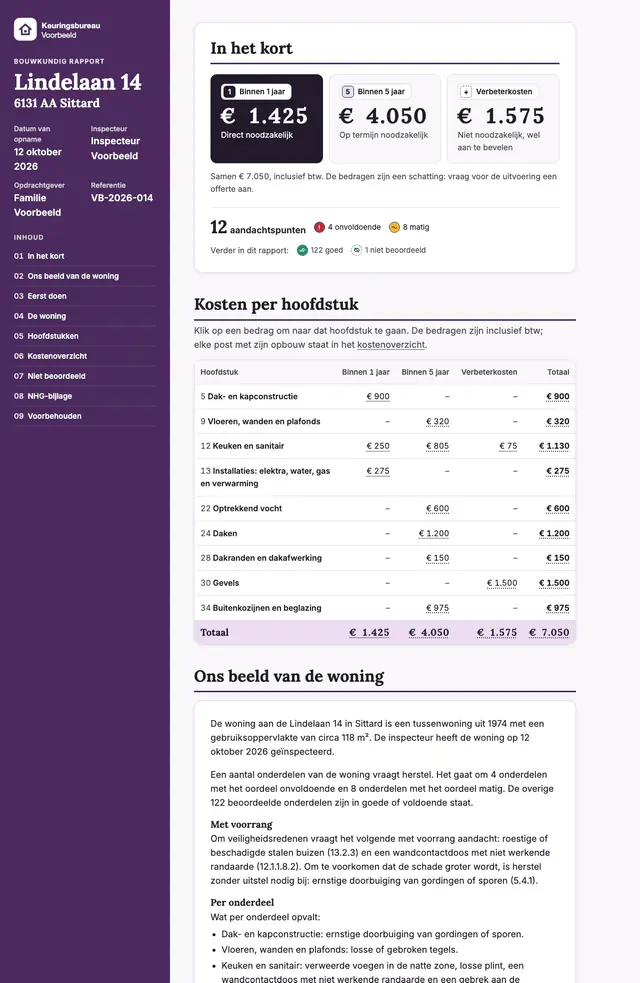
Design
Zijbalk
A dark brand column with the cover and a fixed table of contents, next to a calm reading column.
Example colours
- Main colour#4B2A5E
- Supporting colour#ECDDF2
- Text colour#241A2B
- Background#FAF7FB
Fonts
Headings: Lora · Text: Inter
This logo and these colours and fonts are an example from a made-up firm. With a paid plan, you choose your own logo, four colours and two fonts. Every design uses them. On the free plan, the report is always Klassiek, in the Keursnel house style.
In these images, In het kort (“in short”) comes straight after the cover and the contents. With a paid plan, you set that order under Rapportopmaak (“report layout”). If the report includes the cost overview and there are costs, the costs per chapter follow In het kort.
The other ten designs
These ten are in the house style of the made-up firm. They also take your own logo, colours and fonts.
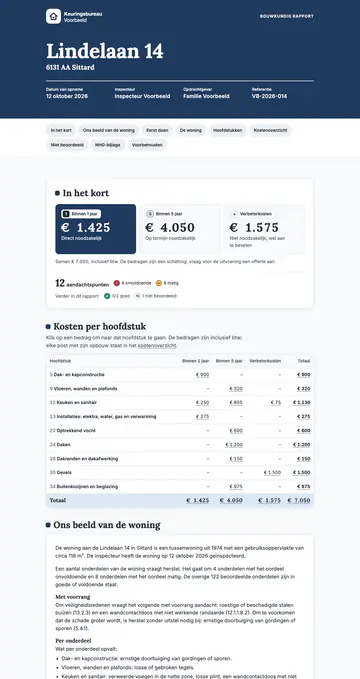
Merkblok 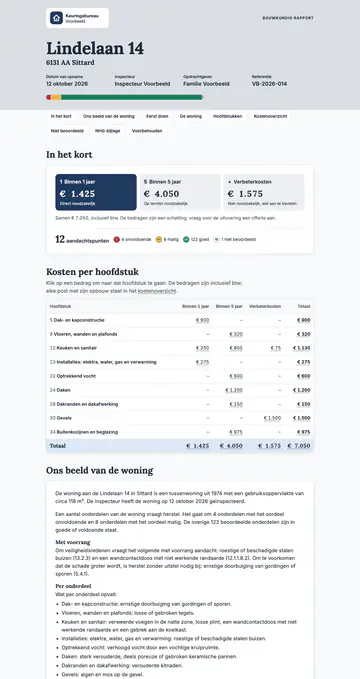
Stoplicht 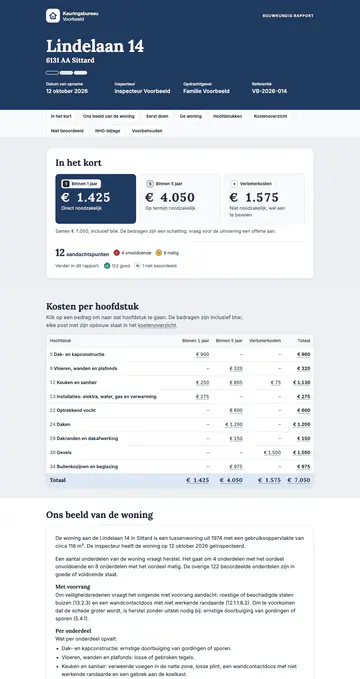
Getinte banden 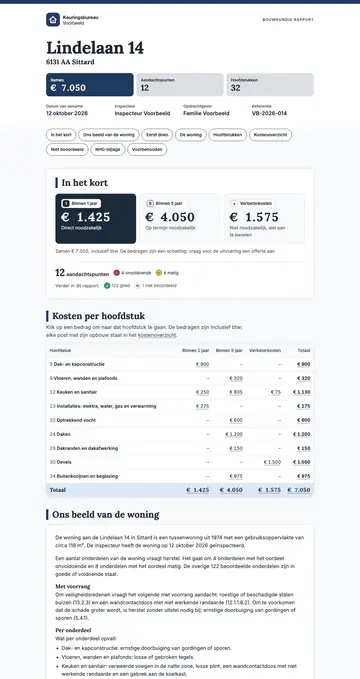
Hoofdstukbanden 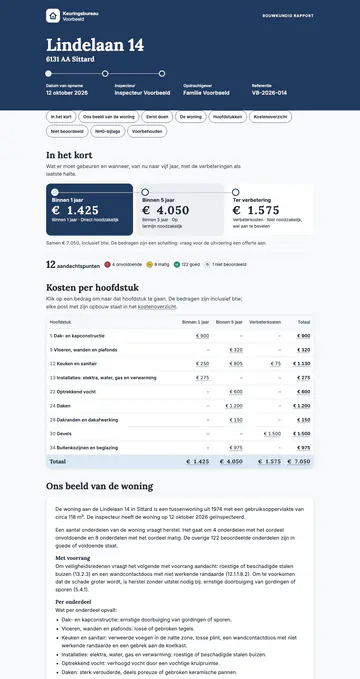
Tijdlijn 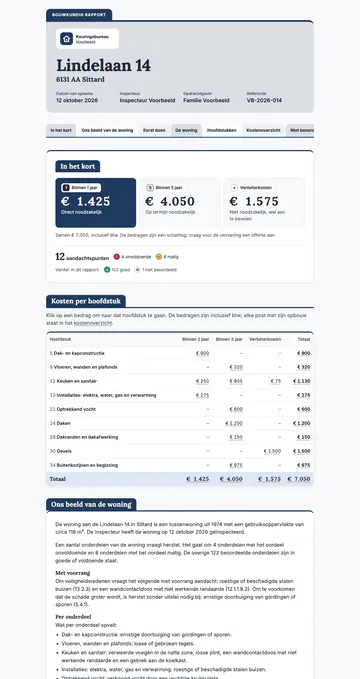
Tabbladen 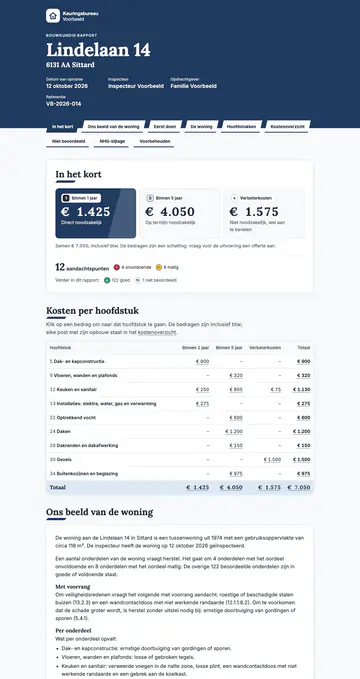
Diagonaal 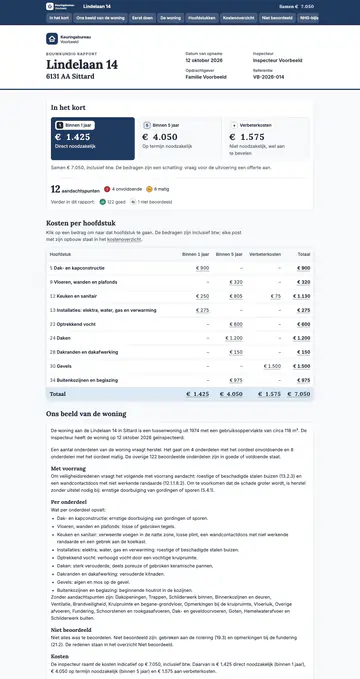
Compact zakelijk 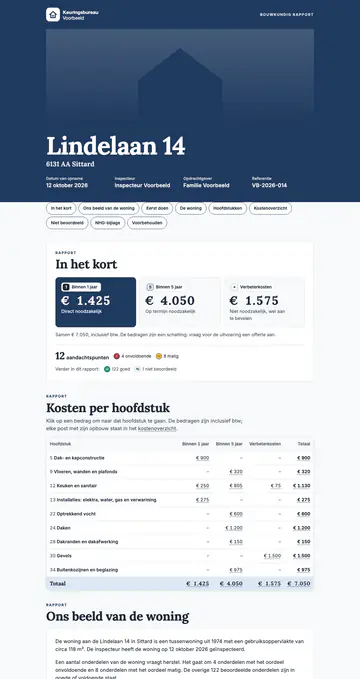
Magazine 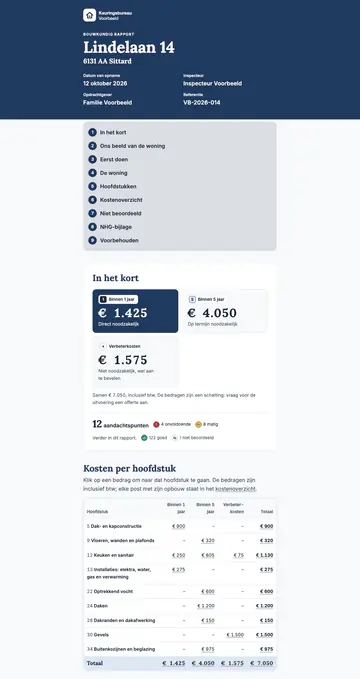
Leesmodus
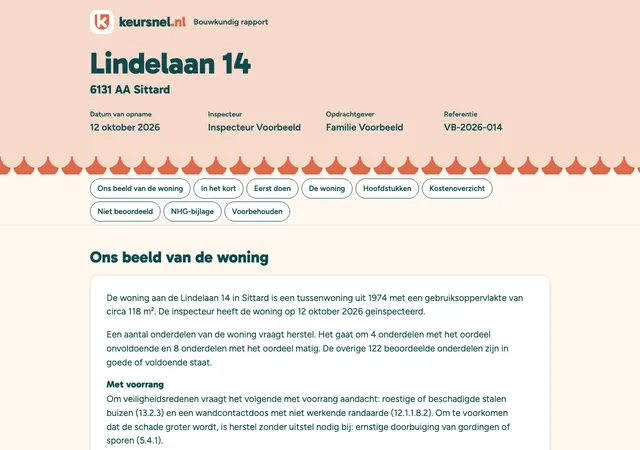
Free: always Klassiek
Without a paid plan, every report gets the Klassiek design in Keursnel's own house style. It then says “Gemaakt met keursnel.nl” (“made with keursnel.nl”) at the bottom.
Open the full report (opens in a new tab)What do you set under Huisstijl?
Under Instellingen, Huisstijl, you record what your firm's report looks like. You choose a logo, four colours, two fonts and a design.
Next to your choices is a preview. It follows what you choose straight away, so you see how it turns out.
The colours of the ratings are not part of the house style. Good, fair and poor have the same colour in every report, with a symbol and a word.
Only the main admin and the managers can change the house style. On the free plan, you can see what is possible, but you cannot choose or save.
- A logo, and a separate logo for a dark background
- Four colours: main colour, supporting colour, text colour and background
- Two fonts: one for headings and one for all other text
- One of the 20 designs
How does your logo get into the report?
Your logo can be a PNG, JPEG, WebP or SVG file of up to 2 MB. A landscape logo with a transparent background works best.
Do you also have a light version of your logo? Add it as the logo for a dark background. On each area, the report then shows the logo that is readable there.
You can also decide for yourself. Choose which logo appears everywhere, with nothing, a white panel or a colour of your own behind it.
How do your colours stay readable?
A house style has four colours, each with its own job. Keursnel measures the contrast between your text colour and the background, and between your text colour and white.
Text must reach a contrast of at least 4.5 to 1. Is it lower, or does the main or supporting colour disappear against the background? Then you get a warning.
The report uses your colours so that text on them stays readable. In the designs, a light main colour becomes an accent instead of a large area with black text.
- Main colour: the report header and the large areas
- Supporting colour: lines, frames and small areas
- Text colour: all text and the dark areas
- Background: the page background on screen
Which fonts can you choose?
You choose two fonts: one for headings and large amounts, and one for all other text.
Ten fonts come with the app. You can also choose from 1,828 families on Google Fonts. Or you add a file of your own: woff2, woff, ttf or otf.
Keursnel fetches a Google Fonts typeface once, at the moment you choose it. After that, your firm keeps it. So your fonts also look right in the report without internet.
Only use a font of your own if you have a licence for it.
- Sans serif: Gabarito, Figtree, Inter, Source Sans 3, IBM Plex Sans, Atkinson Hyperlegible and Nunito
- Serif: Lora, Merriweather and Source Serif 4
- Any family from Google Fonts, 1,828 in total
- Your own font files
How do you choose one of the 20 designs?
A design determines what the report looks like: the cover, the navigation, the summary and the findings. The content is the same in every design.
In the app, you see each design with the sample inspection in your own house style. You view them large, as a phone or as a computer, and browse with previous and next.
On this page you see ten designs, each in a different house style. The other ten are shown in the colours of a made-up firm. You open the full example report under Building inspection report example. The design names are the names in the app, in Dutch.
The online report for your client gets the same design and house style as the report. The report is in Dutch for now; English, German and French are coming soon.
What do you set under Rapportopmaak?
Huisstijl is about how the report looks. Rapportopmaak (“report layout”) is about what is in it and in what order. Rapportopmaak is also part of a paid plan.
You switch parts on or off and drag them into place. Voorblad (“cover page”), Hoofdstukken (“chapters”) and Voorbehouden (“disclaimers”) are in every report.
You choose how the photos for an item are arranged. On the cover page, you add a line above the address, a short text and an image. Your logo and your firm's name and address can go on it too.
You save several layouts. For each inspection, you choose which layout applies.
Can the app itself use your house style too?
Yes, with a paid plan. Under Huisstijl, you can also put the app in your house style. Everyone in your organisation then sees your colours and your logo throughout the app.
You choose the top bar: calm, in your brand colour or dark. You also choose whether the app uses your fonts. With the button “Kleuren uit het logo” (“colours from the logo”), you take colours from your logo.
Is a colour hard to read? Then you see a message with the button “Maak leesbaar” (“make readable”). With “Probeer in de hele app” (“try it in the whole app”), you check the result first.
The colours of the ratings, of errors and of saving always stay the same.
DesignZijbalk
Frequently asked questions
Can I use my house style on the free plan?
No. On the free plan, the report is always Klassiek, in Keursnel's own house style. It then says “Gemaakt met keursnel.nl” (“made with keursnel.nl”) at the bottom. You can view the designs in the app; choosing and saving them requires a paid plan.
Is Keursnel white label?
Not entirely. With a paid plan, your house style is in the report and “Gemaakt met keursnel.nl” is not. But the link to the online report is on Keursnel's address. Your own domain is not possible.
Does a delivered report change if I change my house style?
No, with one exception. On delivery, your colours, fonts and design are fixed in the report version. A new house style applies to the reports you deliver after that. Only the logo for a dark background is read from your settings each time the report is shown.
Can I use a font of my own?
Yes. Add a file in woff2, woff, ttf or otf format and give it a name. You may only use a font if you have a licence for it.
Is the content the same in every design?
Yes. Every design shows the same chapters, findings, costs and NHG annex (for Dutch mortgages with NHG, the National Mortgage Guarantee). Only the look differs: the cover, the navigation, the summary and how the findings are shown.
Who in my firm can change the house style?
The main admin and the managers. A team member cannot change the house style. The house style applies to all of the firm's paid inspections.
See also
Report
The report builds itself as you inspect: 13 parts, ready to share online and to print.
Online report
Your report as a small website for your client, shared with one secret link per report version.
Your own texts and prices
Adapt the standard texts and rates for your whole firm; the rest follows the standard.
Building inspection report example
How a good building inspection report is structured, with Keursnel's 13 report parts as an example.
Reporting software
What good reporting software for building inspections does, and what to look for when you choose.
Pricing
Free for 3 reports a month. After that €25 per inspection, or from €7.50 per inspection with a subscription. All prices exclude VAT.
See pricing
Free for 3 reports a month. After that €25 per inspection, or from €7.50 per inspection with a subscription. All prices exclude VAT.
Inspect without the hassle afterwards
Record the inspection on site. Keursnel works out the costs and creates the report with the NHG annex.