The online report: your inspection report as a small website for your client
The online report is a small website for each report, with tabs for Overzicht, Kosten, Rapportage, NHG and Keuring. You share it with a secret link per report version.


How to share the online report
Deliver the inspection
Controle (“check”) reviews the inspection. On delivery, everything is fixed in a report version.
Choose what it contains
With the report, choose whether the cost overview and the NHG annex are included. View the report as Online, the way your client will see it.
Create the link
Under Deel met de klant (“share with the client”), choose “Maak een link voor de klant” (“create a link for the client”). Keursnel prepares the online report, with the photos inside.
Send the link
Copy the link, or open an email to your client in your own email program. After that, you see how often the link has been opened.
The online report in ten designs
There are 20 designs. Here you see ten of them, each in a different house style.
Design
Zijbalk
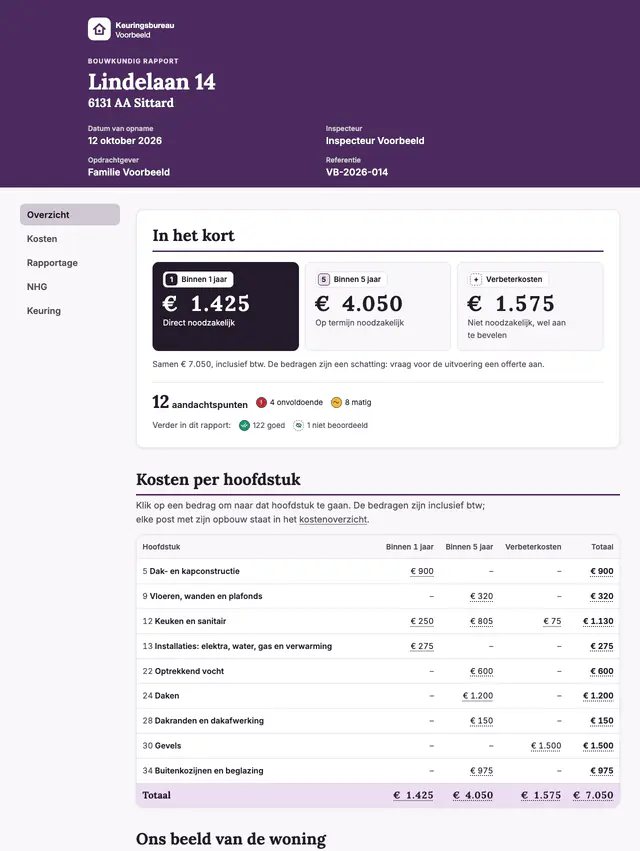
A dark brand column with the cover and a fixed table of contents, next to a calm reading column.
Example colours
- Main colour#4B2A5E
- Supporting colour#ECDDF2
- Text colour#241A2B
- Background#FAF7FB
Fonts
Headings: Lora · Text: Inter
This logo and these colours and fonts are an example from a made-up firm. With a paid plan, you choose your own logo, four colours and two fonts. Every design uses them. On the free plan, the report is always Klassiek, in the Keursnel house style.
In these images, In het kort (“in short”) comes straight after the cover and the contents. With a paid plan, you set that order under Rapportopmaak (“report layout”). If the report includes the cost overview and there are costs, the costs per chapter follow In het kort.
The other tabs
This is how your client sees the Kosten, Rapportage and NHG tabs on a phone.
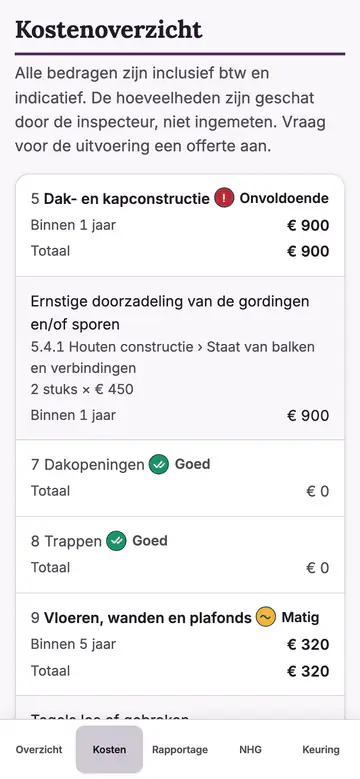
Kosten (“costs”): the cost overview per chapter and timeframe 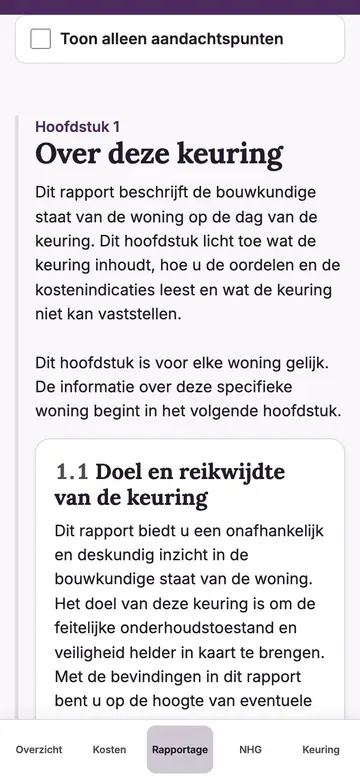
Rapportage (“report”): the chapters, with the filter “Toon alleen aandachtspunten” (“show only points to note”) 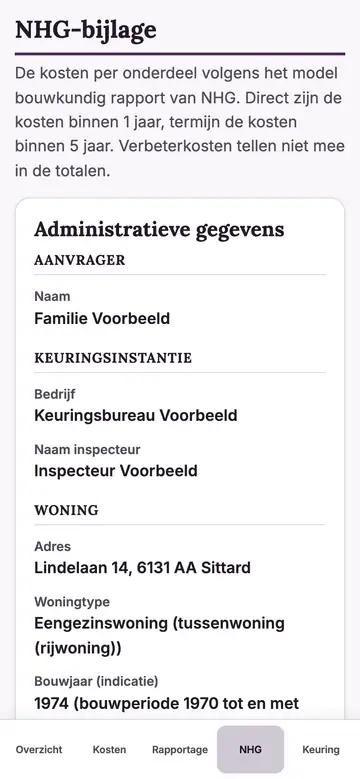
NHG: the NHG annex
The other ten designs
These ten are in the house style of the made-up firm. They also take your own logo, colours and fonts.
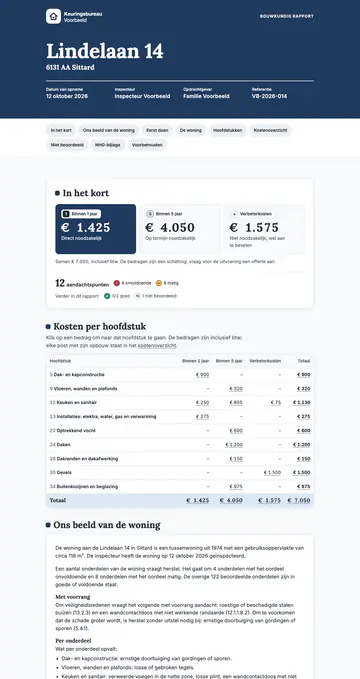
Merkblok 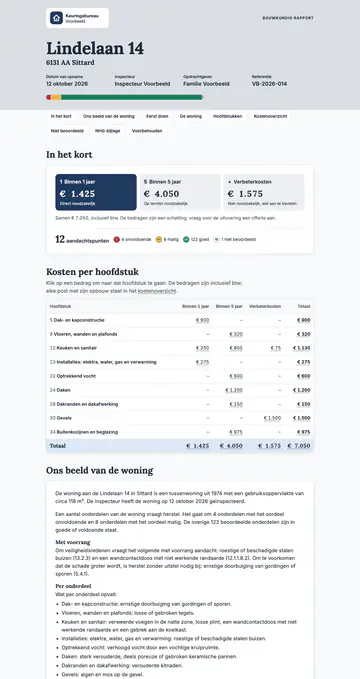
Stoplicht 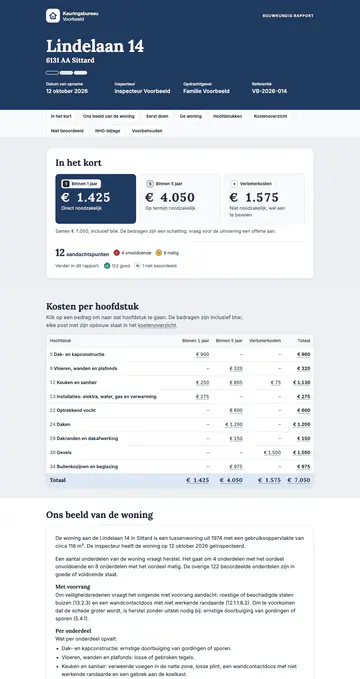
Getinte banden 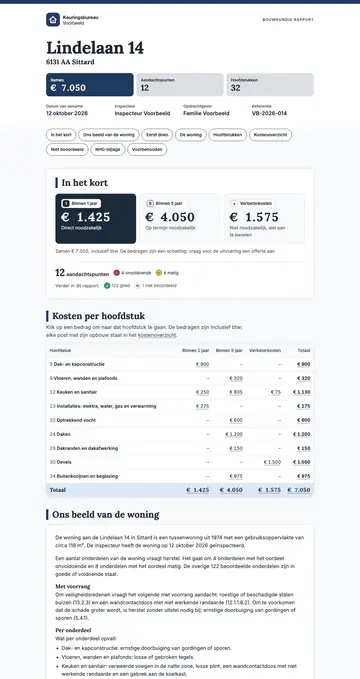
Hoofdstukbanden 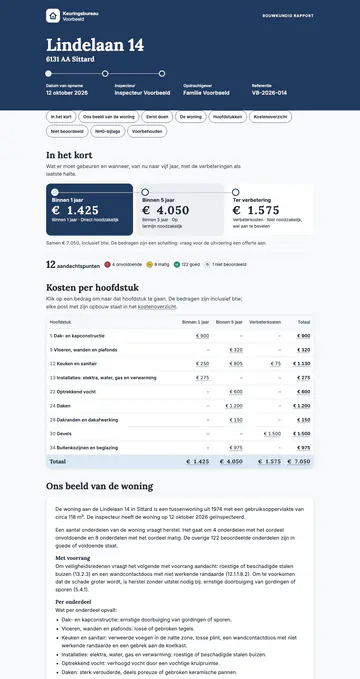
Tijdlijn 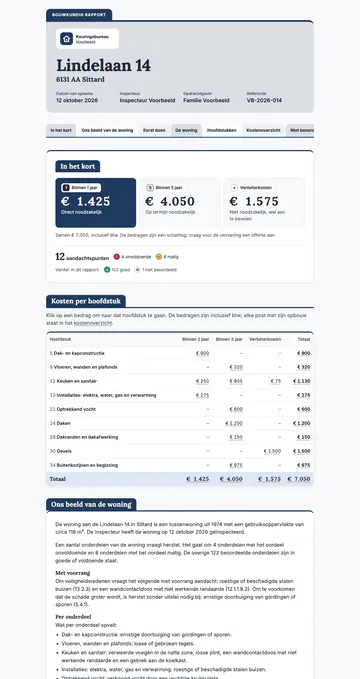
Tabbladen 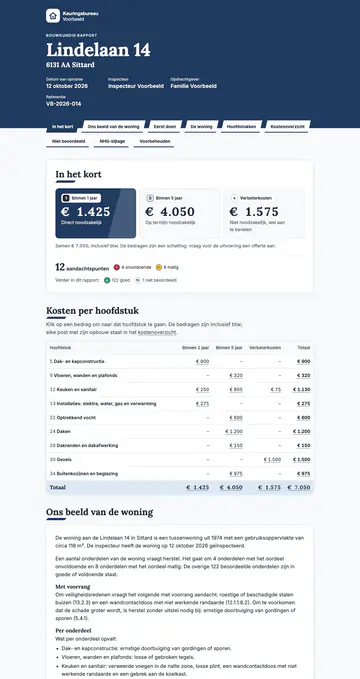
Diagonaal 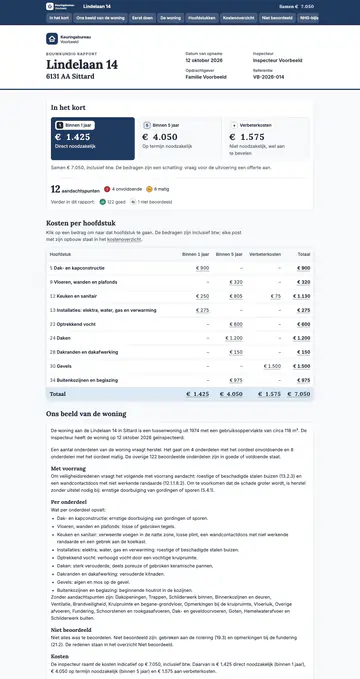
Compact zakelijk 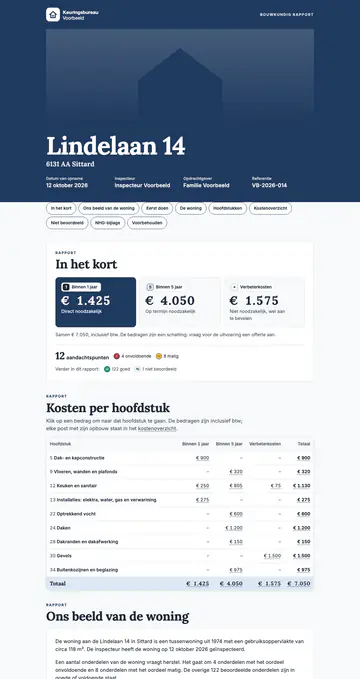
Magazine 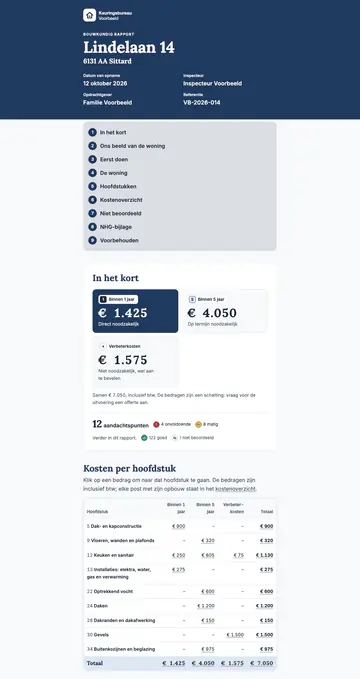
Leesmodus
What is the online report?
The online report is a digital report for your client: a small website for each report. Your client opens it with a link, without an account and without logging in.
It is a single file, with the photos and the fonts inside. It works without scripts and loads nothing from elsewhere.
The content is the same as in the report. Only the layout differs: it uses tabs, so your client quickly finds what they are looking for.
Which tabs does the online report have?
The online report has five tabs. A tab without content is left out. A partial inspection, for example, has no NHG annex, and so no NHG tab.
On a phone, the bar with tabs sits at the bottom of the screen. On a large screen, from 1,000 pixels wide, the tabs are on the left.
- Overzicht (“overview”): Ons beeld van de woning (“our view of the home”), In het kort (“in short”) with the costs per chapter, Eerst doen (“do first”) and the chapter overview
- Kosten (“costs”): the cost overview per chapter and timeframe
- Rapportage (“report”): all chapters with the findings
- NHG: the NHG annex, for Dutch mortgages with the National Mortgage Guarantee
- Keuring (“inspection”): the home details, what was not assessed or does not apply, and the disclaimers
How does your client quickly find the points to note?
The Rapportage tab has the checkbox “Toon alleen aandachtspunten” (“show only points to note”). Only the chapters and findings that need attention then remain.
Those are findings rated fair, poor or further investigation, and findings with costs. The checkbox works without scripts, just like the tabs.
The Overzicht tab helps too. Eerst doen puts the most important points in a fixed order, with the highest amount at the top of each group.
How do you share the online report?
Under Deel met de klant, you create one secret link per report version. The link contains a code of 64 characters. Anyone with the link can read the report.
Copy the link, or choose “Mail naar de klant” (“email the client”). Your own email program then opens with a ready-made message. Keursnel does not send any email itself.
Sharing only works with a connection to the server. Anyone who may deliver an inspection may also share it.
The link is on Keursnel's address, with /r/ and the code after it. Your own domain for the link is not possible.
- Copy the link
- Email the client, from your own email program
- View the online report yourself
- Revoke the link
What happens with a new version?
A link belongs to one report version. If you deliver again, the new version gets a new link. So your client never reads a changed report without noticing.
Per version, at most one link works. You see the links of other versions that still work in a list. You can revoke them there too.
The report states what has changed since the previous version. In the online report, that is in the Keuring tab.
How do you stay in control of the link?
In the app, you see for each link how often it has been opened, and when it was last opened. Has it not been opened yet? That is shown too.
Should the report no longer be read? Revoke the link. It then stops working, and the file is cleaned up. If the inspection is in the recycle bin, the link stops working too.
A revoked or unknown link gives the same page as a link that never existed. So anyone who guesses a link learns nothing.
Search engines may not index the page. It has no scripts and no forms, and another site cannot show it in a frame.
What does the online report look like?
The online report gets the same design and house style as the report. If you choose Zijbalk (“sidebar”), for example, the cover appears at the top in that design.
Does your client want to keep or print the report? The bottom of the Keuring tab explains how. Printing gives all tabs one after another, also as a PDF.
The online report is in Dutch for now. English, German and French are coming soon.
DesignZijbalk
Frequently asked questions
Does my client need to log in to read the report?
No. Your client opens the online report with the link, without an account or password. That is why the link is secret. The ready-made email asks your client to share the link only with people who may read the report.
Can I see whether my client has opened the report?
You see how often the link has been opened and when it was last opened. You do not see who opened it. Everyone with the link counts, including you if you open it yourself.
What do I do if I sent the link to the wrong person?
Revoke the link. It then stops working, and the file is cleaned up. Then create a new link for the same version and send it to the right person.
Can the online report be on my own domain?
No. The link is always on Keursnel's address, with a secret code after it. The report itself does have the design and house style that belong to the inspection.
Can my client print the online report or save it as a PDF?
Yes. Printing from the browser gives all tabs one after another. There, your client can also save the report as a PDF. The bottom of the Keuring tab explains this too.
What does the online report look like on a phone?
On a phone, the bar with tabs sits at the bottom of the screen, and the text is in one column. On a large screen, the tabs are on the left. See the example on this page.
See also
Report
The report builds itself as you inspect: 13 parts, ready to share online and to print.
House style
Your firm's logo, colours and fonts in the report, with 20 designs to choose from.
Building inspection report example
How a good building inspection report is structured, with Keursnel's 13 report parts as an example.
Reporting software
What good reporting software for building inspections does, and what to look for when you choose.
Security
How Keursnel secures your inspections, photos and reports, and what is not yet in place.
See pricing
Free for 3 reports a month. After that €25 per inspection, or from €7.50 per inspection with a subscription. All prices exclude VAT.
Inspect without the hassle afterwards
Record the inspection on site. Keursnel works out the costs and creates the report with the NHG annex.